
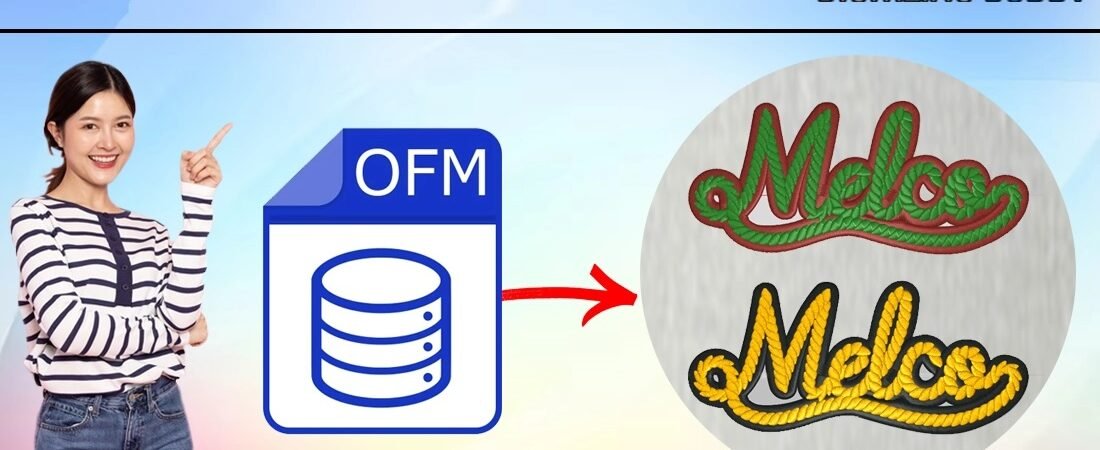
Convert an OFM Embroidery File
Introduction
Have you ever received an OFM embroidery file only to discover that your embroidery machine can’t read it? You’re not alone. Many embroidery enthusiasts and business owners face this challenge when working with different embroidery machine formats.
The good news is that learning how to convert an OFM embroidery file is easier than it sounds. With the right software and a few simple steps, you can transform an OFM file into a format your machine recognizes and start stitching without frustration.
In this guide, we’ll explain what an OFM file is, why conversion may be necessary, and how to convert it successfully while maintaining embroidery quality.
What Is an OFM Embroidery File?
An OFM file is a digital embroidery design file that contains stitch information, color changes, trim commands, and other machine instructions.
Unlike image files such as JPG, PNG, or SVG, embroidery files are made specifically for embroidery machines. They tell the machine exactly where each stitch should go and how the design should be sewn.
Common information stored in an OFM file includes:
- Stitch types
- Stitch directions
- Thread color sequences
- Design dimensions
- Machine commands
Because not all embroidery machines support OFM files, conversion is often necessary.
Why Convert an OFM Embroidery File?
Embroidery machines speak different “languages.”
Think of embroidery formats like charging cables. One device may use USB-C while another requires a different connector. The same concept applies to embroidery file formats.
You may need to convert an OFM file if:
- Your machine does not support OFM format
- Your embroidery software requires another file type
- A client requests a specific format
- You need compatibility with multiple embroidery machines
Common Embroidery Formats You Can Convert To
Before converting, it’s helpful to know the most popular embroidery machine formats.
Commercial Machine Formats
- DST
- EXP
- DSB
Home Embroidery Machine Formats
- PES
- JEF
- HUS
- VP3
- XXX
Each machine manufacturer typically supports specific file formats.
How to Convert an OFM Embroidery File
Converting an OFM embroidery file usually requires embroidery digitizing software that supports both OFM and the target format.
Step 1: Open the OFM File
Launch your embroidery software and import the OFM design.
Check the design carefully for:
- Stitch quality
- Design size
- Thread colors
- Underlay settings
This helps identify any issues before conversion.
Step 2: Verify Design Settings
Before exporting the file, confirm that:
- Design dimensions are correct
- Stitch density is appropriate
- Color sequence is accurate
- Small text remains readable
A quick review can save time later.
Step 3: Select Export or Save As
Most embroidery software includes an export feature.
Choose:
File → Export → Select Desired Format
Examples include:
- DST for commercial machines
- PES for Brother machines
- JEF for Janome machines
- HUS for Husqvarna Viking machines
Step 4: Save the New File
Save the converted file using a descriptive name.
For example:
- CompanyLogo_DST.dst
- HatDesign_PES.pes
- JacketLogo_JEF.jef
Proper naming makes file management easier.
Step 5: Test the Design
Never skip the test stitch.
Even when a conversion appears successful, testing helps verify:
- Stitch accuracy
- Letter clarity
- Color changes
- Design registration
A sample stitch-out can reveal issues before production begins.
Common Problems During OFM File Conversion
Sometimes converted embroidery files may not stitch perfectly.
Here are a few common issues:
Missing Stitches
Some software may not translate every stitch correctly.
Color Sequence Changes
Thread colors can occasionally shift during conversion.
Design Size Differences
The design may resize unexpectedly if settings are altered.
Distorted Lettering
Small text is especially sensitive during format conversion.
Testing is always the best way to catch these issues early.
Tips for Better OFM File Conversion
Follow these practical tips for the best results.
Keep the Original File
Always save the original OFM file before making changes.
Use Professional Software
High-quality embroidery software usually produces cleaner conversions.
Avoid Repeated Conversions
Converting a file multiple times can reduce design accuracy.
Review Every Design
Even experienced digitizers inspect files before production.
Test on Similar Fabric
A design may behave differently on caps, polos, jackets, or fleece.
When to Consider Professional Digitizing Services
Not every embroidery file converts perfectly.
Complex designs often require manual adjustments after conversion.
Examples include:
- Small lettering
- Detailed logos
- 3D puff embroidery
- Appliqué designs
- Photo embroidery
In these situations, professional digitizing services can ensure the design stitches correctly and efficiently.
At Digitizing Buddy, experienced digitizers help prepare embroidery files for various machine formats while maintaining design quality and production efficiency.
Benefits of Proper File Conversion
Learning how to convert an OFM embroidery file offers several advantages:
- Greater machine compatibility
- Reduced production delays
- Better stitch quality
- Improved workflow efficiency
- Easier design sharing
A properly converted file helps ensure smooth embroidery production from start to finish.
Conclusion
Understanding how to convert an OFM embroidery file is an essential skill for embroidery enthusiasts, businesses, and professional digitizers. Whether you’re working with logos, patches, monograms, or custom apparel, proper conversion ensures your embroidery machine can read and stitch the design accurately.
The key is to use reliable software, review design settings carefully, and always run a test stitch before production. By following these best practices, you can avoid common conversion issues and achieve cleaner, more professional embroidery results.
FAQs
Can I convert an OFM embroidery file for free?
Some embroidery software programs offer basic conversion features, but advanced software often provides more reliable results and better compatibility.
What is the best format to convert an OFM file into?
The best format depends on your embroidery machine. Common options include DST, PES, JEF, HUS, and VP3.
Will converting an OFM file affect stitch quality?
A proper conversion usually maintains stitch quality, but some complex designs may require adjustments after conversion.
Can I convert OFM files directly to PES or DST?
Yes. If your embroidery software supports OFM files, you can usually export them directly into PES, DST, or other machine formats.
Why should I test stitch a converted embroidery file?
Testing ensures the converted design maintains proper stitch density, alignment, lettering clarity, and color sequence before full production.


